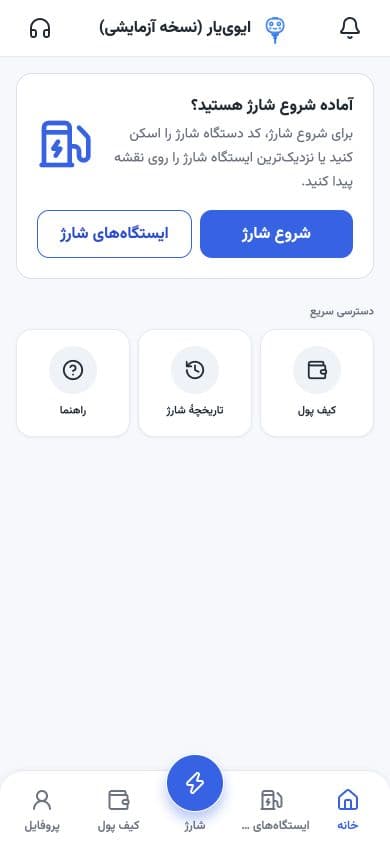
From account verification to end of charge—follow the steps with real EV-YAR app screenshots.
To start charging, personal details and identity verification are required. Adding a vehicle is optional.
Open the EV-YAR web version in your browser and sign in with the steps shown in the app. After sign-in, check your account status in the Profile tab.
Open the web version in Safari; from the Share menu, choose Add to Home Screen and confirm.
Open the web version in Chrome; from the browser menu, choose Install app or Add to Home screen. The exact label depends on your browser version.
This option shows the status of each step.
Complete the required fields as shown in the in-app form.
Confirm that the national ID matches the account mobile number.
After identity verification, look for the in-app message that charging is available.
Completing details and identity verification is required for the account. Taxi status confirmation is separate; follow up on account status and taxi-related conditions via in-app support.
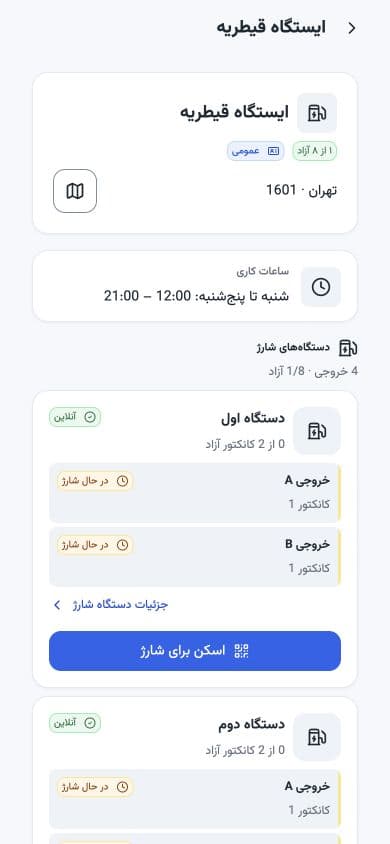
From the Charging stations tab, open the station you need. See opening hours, outlet status, and charger details—then get directions if you need them.
A charger being online does not mean an outlet is free. Statuses and hours in sample images may change.
Finish the connection and ready the charger as shown on the device display.
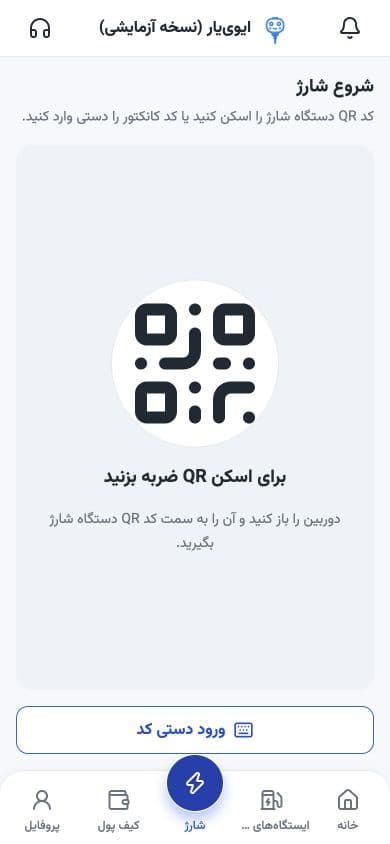
In the Charge tab, choose Tap to scan QR.
Tap Enter code manually, type the connector code plugged into your car, then choose Continue.
If the app asks you to pick a connector, choose the same outlet connected to your car. Then confirm that charging actually started in the app and on the device.
After it starts, check session status in the app and on the device. To end the charge, use Stop inside the active session.
From the active session, choose Stop.
Confirm the session ended in the app and on the device display.
After the charge ends and the lock releases, unplug the connector and place it back in the holder.
If Stop doesn’t work or the connector won’t release, contact support. Do not force the cable or lock.
From the Wallet tab, see your balance and current account options. If top-up is available, check the amount, complete payment on the official path, then after return see the result in balance and transaction history.
Check payment status in the app. When the app was reviewed, online payment was temporarily unavailable. Check in-app notices and options for whether payment is active and for current terms.
In the Profile tab, you have two separate paths for history:
Review charging sessions and their details.
Review account money movements and payment results.
For follow-up, note the session or transaction ID when available. A loading error does not mean there is no history.
In Profile, review your details and account verification status. To manage vehicle info, open My vehicles.
Adding a vehicle is not required for charging. Don’t confuse that step with identity verification, which is required before charging.
11 practical answers
Check the number you entered and that SMS is arriving. After the wait time shown in the app, try resend. If it continues, contact support.
In Profile, open Account verification steps. Personal details and matching national ID to the mobile number must be complete.Account verification steps
The national ID must match the owner of the account mobile number. Check the info and in-app message; ask support for help correcting details.
Account identity verification is different from taxi status confirmation. For account status and taxi-related conditions, follow up via in-app support.
Check browser camera permission and that the code is clear. If you can’t scan, on the start-charging screen tap Enter code manually and type the connector code plugged into your car.Start charging guide
Online means the device’s connection status. Check each outlet’s availability separately on the station detail page. Don’t treat unknown or charging as free.
Check account verification, a full connector connection, the code, and the selected outlet. Read the app message and device display. If it continues, tell support the station name and when it happened.
Confirm the session ended in the app and on the device. If Stop fails or the lock hasn’t opened, contact support. Don’t force the cable or lock, and don’t yank the connector.
After returning to the app, check transaction status and balance. If unclear, put payment time and any tracking ID in a ticket. Don’t pay again before the result is clear.
Check your internet connection and try again. A fetch error is different from empty history. If it continues, record the message text and time in a ticket.
Check the in-app station list. For coverage where you are, ask support.
In Support, see contact options or open a Support ticket. For a new request, choose Submit a new ticket; replies and the rest of the conversation appear in that same ticket.
Open EV-YAR, get your account ready, and find the nearest station.